|
<< Click to Display Table of Contents >> Import Data - SAR Spaceborne - SENTINEL-1 |
  
|
|
<< Click to Display Table of Contents >> Import Data - SAR Spaceborne - SENTINEL-1 |
|
Purpose
Standard products, acquired by the SENTINEL-1 missions, are imported into the SARscape Data Format for further processing.
Technical Note
The import functionality requires only the input parameter file(s) to be specified. If the input is a list of files, all products must be of the same type (refer to the "Supported Products" section).
PLEASE NOTE:
In case the auxiliary orbit file is not included in the orbit repository, a download query is performed to get the only the missing orbit file. The downloaded file is stored in the SARcape working directory and used during the import step. Once the data is imported, the orbit file is deleted.
The orbits are downloaded through either the Alaska SAR Facility or the Data Space platform. Therefore, it is mandatory to enter the relevant credentials in at least one of the two dedicated panels. If credentials are missing, the input images will be imported without orbit information, and interferometric processing may produce unreliable results.
PLEASE NOTE:
In case of IW SLC import (TOPSAR mode), the Bursts are kept separately inside a new folder (two folder in case of two polarization) with extension ".split_burst_cut" created in the output directory. A _slc_list file is created as well. Please use this file as input for other processing such as interferometry or multilooking.
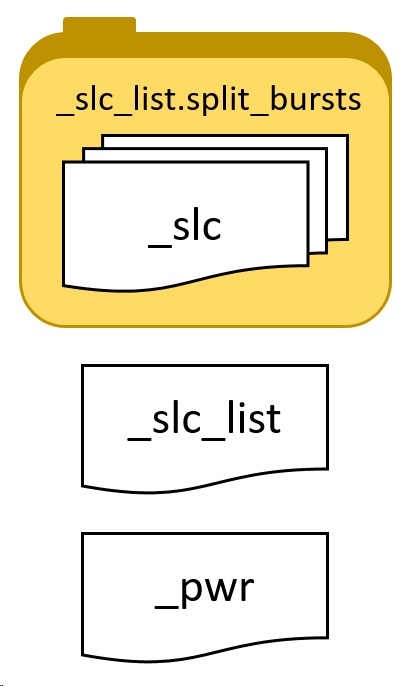
The image below shows the content of a folder containing an imported IW SLC acquisition. The actual SLC data is stored divided in bursts inside the .split_bursts directory. For processing, we suggest to use the _slc_list file which is a link to all the single bursts, SARscape is able to read the _slc_list and perform the link to the bursts. It is not possible to open the _slc_list file in ENVI to show the SLC data as this file does not contains data but only a textfile link. Howeverer, it is possible to open the multilooked _pwr data which is created if the "Make Power QL" is set to true in the parameters.
To keep the link between the _slc_list file and the bursts, it is mandatory to keep the file structure as it is. _slc_list file (with .sml) and the .split_bursts folder should be moved or copied together. The _slc_list file (with .sml) and the .split_bursts folder must be in the same directory.
In case of Sample Selection is performed after the import, the structure of the output file will remain the same (filename will have the suffix _cut added). To perform sample selection of _slc_list data, please follow the instructions found here.
|
_slc_list.split_bursts This folder, called with the extension "_slc_list.split_bursts", contains all the single bursts which contains the entire acquisition. Each burst has a _slc extension, ENVI header files (.hdr) and SARscape header files (.sml), as well as shapefile (.shp) which allow the user to display the boundaries in geographic coordinates, for instance in ENVI. .kml are also provided for location display purpose. These files can be opened in Google Earth, ArcGIS Earth or similar software.
Please note: No not use these _slc for processing but use rather the _slc_list file which is located outside this folder.
|
_slc_list The _slc_list file is a simple text file which "links" to the different _slc files composing the acquisition which are located inside the "_slc_list.split_bursts" folder. This file is accompanied by a SARscape header file (.sml) which allows the software to recognize the _slc_list as a valid file for processing input. This file can not be opened in ENVI.
|
|
_pwr This file is the result of the mosaic of multilooked bursts. This file can be opened in ENVI and represents the intensity. This file is created automatically if the "Make power QL" flag is set to TRUE in the "Other Preferences.
|
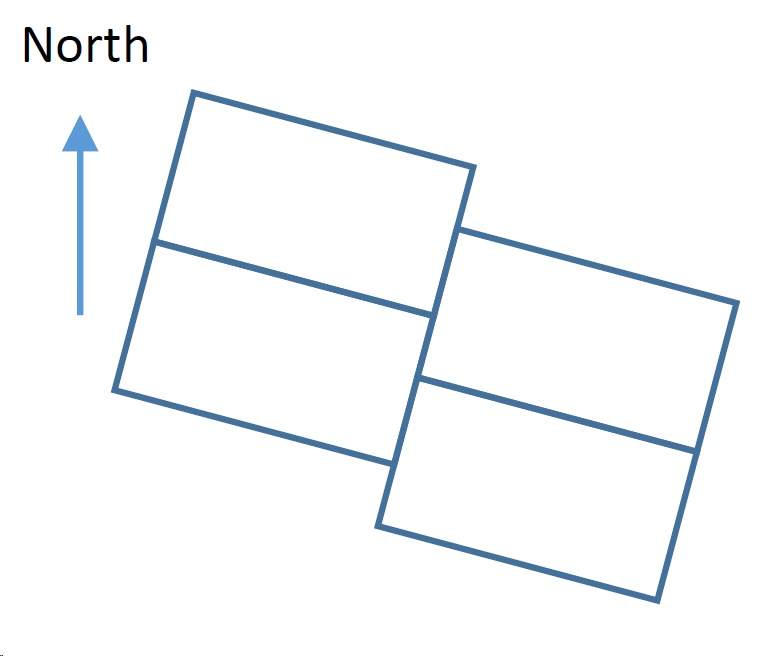
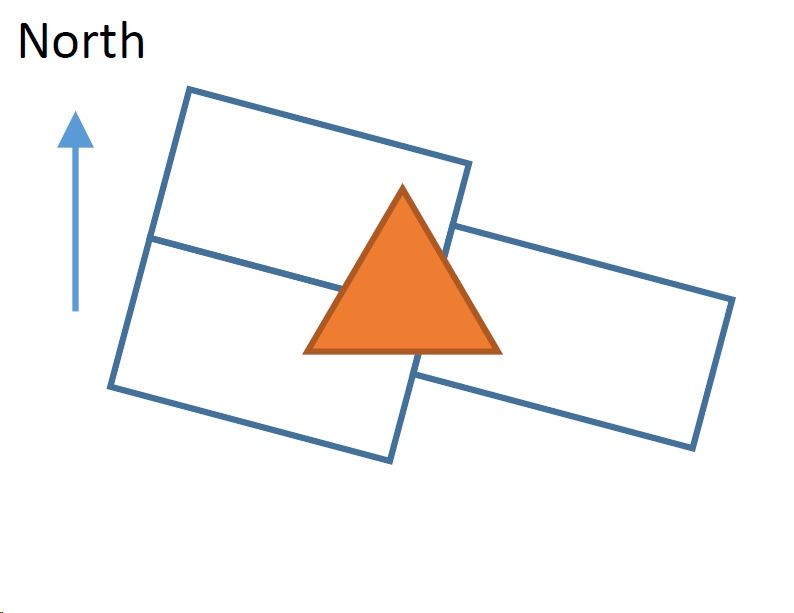
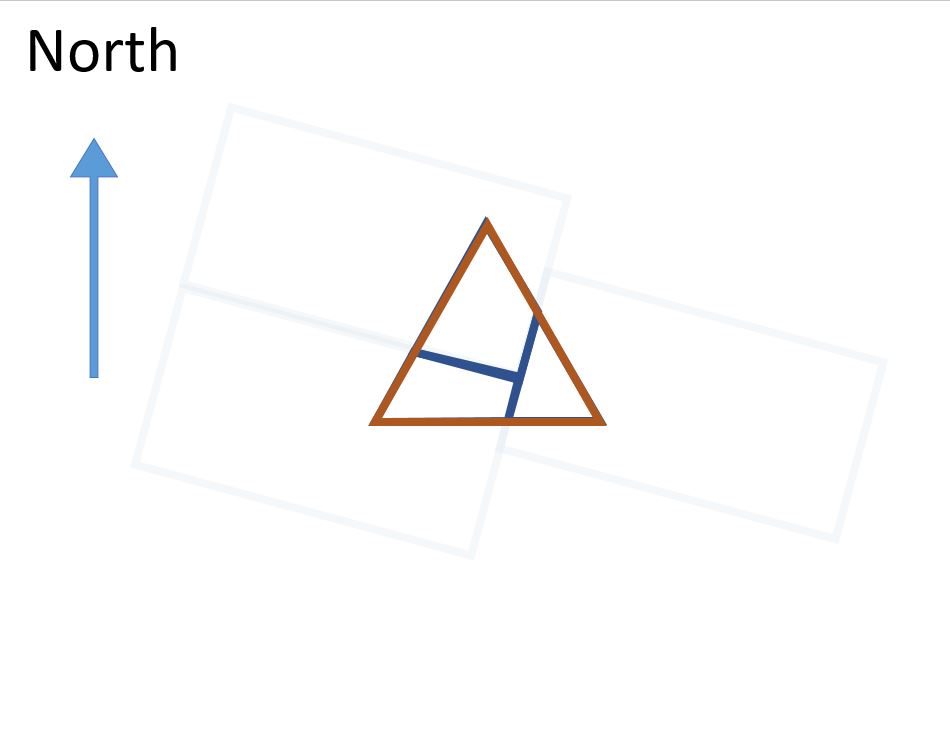
In order to save disk space and computational time, it is possible to import only a part of a IW SLC data, corresponding to the bursts intersecting a given Area Of Interest in form of a shapefile in geographic coordinates. Bursts which are not carrying relevant information (i.e. not covering the defined area of interest) will not be imported
|
|
1. Bursts of TOPSAR acquisition (simplified)
|
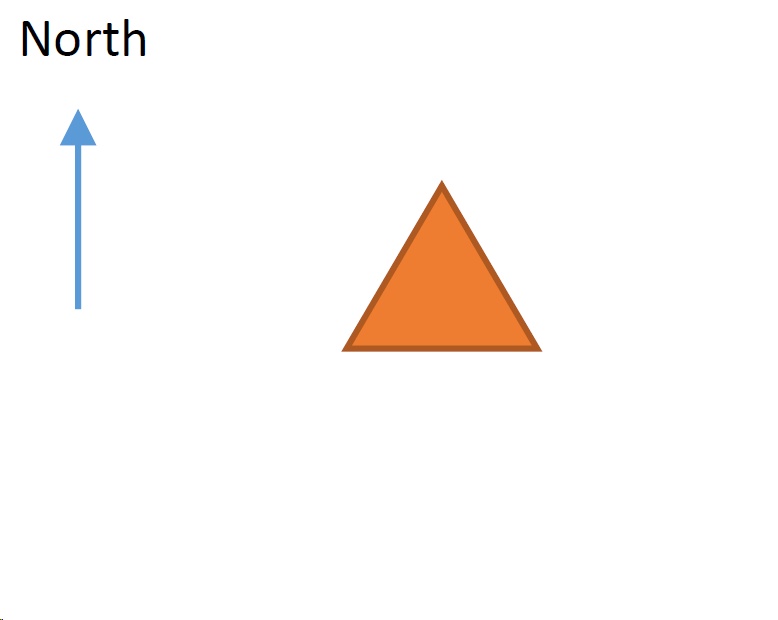
2. Shapefile in geographic coordinates for area of interest
|
|
|
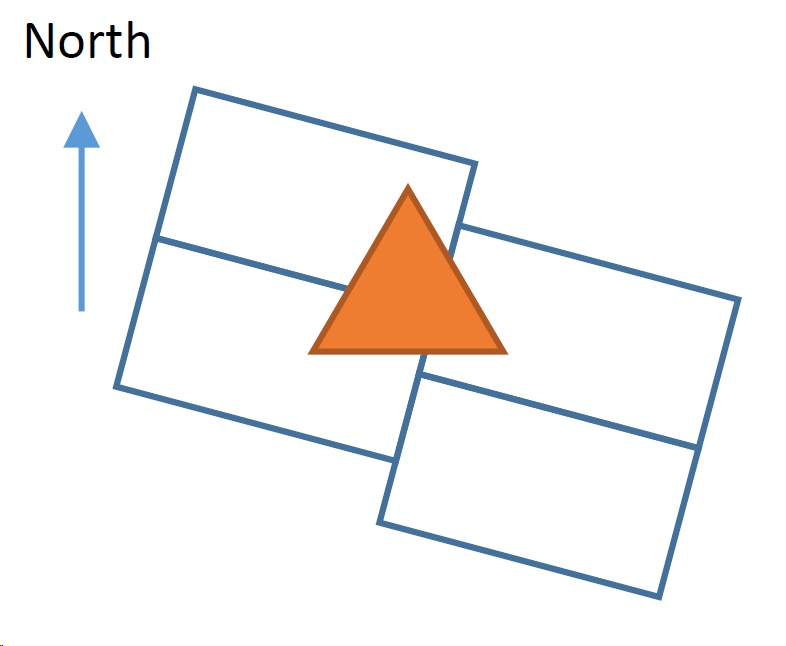
3. The software checks which bursts intersects the area olf interest and only these bursts will be imported |
4. During the import, only the bursts intersecting the area of interest shapefile will be imported.
|
|
|
5. The sample selection is performed, only the burts part included in the AOI (if included) are imported and cut. |
|
Supported Products
| SM SLC | Stripmap Mode. Slant Range, Single-Look, Complex Products (SLC). |
| IW SLC | Interferometric Wide Swath (TOPS Mode). Slant Range, Single-Look, Complex Products (SLC). |
| EW SLC | Extra-Wide Swath (TOPS Mode). Slant Range, Single-Look, Complex Products (SLC). |
| SM GRD | Stripmap Mode. Ground Range, Multi-Look, Detected Products (GRD). |
| IW GRD | Interferometric Wide Swath (TOPS Mode). Ground Range, Multi-Look, Detected Products (GRD). |
| EW GRD | Extra-Wide Swath (TOPS Mode). Ground Range, Multi-Look, Detected Products (GRD). |
Further information on SENTINEL-1 data is available at: https://earth.esa.int/web/guest/missions/esa-operational-eo-missions/sentinel-1
Data to import can be downloaded using the Sentinel Data Download Tool.
Orbits repository can be downloaded using the Sentinel Auxiliary File Download tool.
AUX_POEORB Precise Orbit Ephemerides.
AUX_RESORB Restituted Orbit.
Restituted orbit files (AUX_RESORB) are generated within 3 hours from the acquisition with an accuracy < 10 cm rms.
Precise orbit files (AUX_POEORB) are generated within 21 days from the acquisition with an accuracy < 5 cm rms.
Orbit files for can be downloaded with the proper SARscape tool or from https://dataspace.copernicus.eu/browser/.
Orbit file products are optional and are required only for interferometric processing. The orbit files relevant to the input images are automatically downloaded during the import process. The software temporarily stores the downloaded orbits inside the SARscape work folder. The user should also ensure that the ASF and Copernicus Data Space credentials are entered in the SARscape Common Preferences panel (see the “Preferences” section below).
Otherwise, if the relevant orbit files are already stored in an existing folder, which has been defined as the Sentinel-1 Orbit Directory, they will not be downloaded but will be automatically retrieved by the tool from that location. In this case the program will first search in the AUX_POEORB subdirectory of the “Sentinel-1 orbit directory” for an orbit file matching the acquisition date and time of the corresponding input file.
Important: For IW and EW products (see Supported Products section), the SENTINEL TOPSAR (IW-EW) Preferences should be loaded from SARscape Preferences. For SM products the VHR preferences should be selected.
To enable an automatic selection of the orbit files, the “Sentinel-1 orbit directory” field must be specified under “Directories and batch file names”. This directory should contain two sub-directories named AUX_POEORB and AUX_RESORB, containing the corresponding orbit products (see Supported Orbit File Products and the Orbit Directory in the preferences). These orbit directories can be populated and kept up to date using the proper SARscape tool.
Import procedure for a large IW SLC data stack
In case of an import of a large stack of SLC IW data, we suggest to use a geocoded shapefile in order to firstly download all the needed data (this can be done with the proper SARscape tool).
Make sure the preferences are set to Sentinel TOPSAR and the Precise Orbits folder is correctly linked. Once all the zip files are downloaded, right click in the input file list, select "add folder" and select the folder containing the zipped files. All the manifest.safe file are automatically added. Insert the AOI in order to import only the needed bursts and set the parameters as follows: Make Power QL to FALSE, Polarization: Copol only, Make mosaic same track: TRUE, Rename the file using parameters: TRUE. Set a convenient output file and launch the process.
Subsequently use the sample selection SAR geometry data tool in order to reduce the extend of your area. In this case you will get multilooked _pwr to inspect.
Input Files
Input Parameters File list
Input file name(s) of the original Parameter file(s) (manifest.safe, .zip). These files are mandatory.
Tip: In order to import a large amount of acquisition, we suggest to use the "Open Folder" or "Browse Files" function. Please refer to the overview chapter for more information.
Tip: In order to import a large amount of acquisition in , we suggest to use the "Open Folder" function.
Optional Files
Area of interest in Geographic Coordinates
In case of SLC IW import, a vector file (.shp) can be upload to specify a region of interest. Only the bursts intersecting this region will be imported. This will reduce the import processing time and disk space needs. This file is optional.
Note: In case the AOI is included, the _slc_list sampling does follow the given shapefile coordinates. The intersected part of the bursts are kept. It is possible to give a threshold of valid pixels inside the selected area to determine if the burst has to be kept in the sampled image.
Progress File Name
A .txt file named ''*_progress.txt'' is generated whenever the software crashes during the import phase. The software will import only for those files that has not been imported yet if the ''*_progress.txt'' file is uploaded.
Parameters - Principal Parameters
Make power QL
A multilooked power image is created in case of SLC import. Please use this file as reference in case of further use of Sample Selection tool.
Polarization
This option let to choose which polarization should be imported in case the original data contains more than 1 polarization.
Options are All, Copolarization, Copolarization as:
All,
VV HH only
VH HV only
VV VH only
HH HV only
HH only
VV only
VH only
HV only
This is helpful in case of only one polarization is needed (e.g. only copolarization for interferometry purposes) reducing the time of the import and the space on disk needed.
Make mosaic same track
If this option is set and all the files in the input file list are acquired in succession on the same track, the output will be one single _slc_list with only one .split_bursts folder (for each polarization).
Thermal Noise Removal
By setting this flag the software will remove the thermal noise from the Sentinel-1 SAR image.
Removing thermal noise is required to normalize the backscatter signal within the entire SAR image, which is essential to both qualitative and quantitative use of SAR data.
Thermal noise is most obvious in cross-polarization SAR images, such as VH or HV, and SAR images with low backscatter.
Skip Sample Selection
If this option is set to True, the burst that intersect the AOI are imported and the sample selection is not performed. If this option is set to False (default) the burst imported are also sampled based on the AOI.
Fill dummy during import
Possibility to replace invalid backscatter pixel values with random low values.
Rename the file Using Parameters
If this option is not set, the output files will be placed in the output directory with the root name which appears in the Output File List.
If this option is set (recommended), the output files will be placed in the output directory with an automatically generated root name, assigned based on the input file parameters.
Note: the Data Type is automatically detected and selected.
Parameters - Global
It brings to the general section of the Preferences specific parameters. Any modified value will be used and stored for further processing sessions.
Parameters - Other Parameters
It brings to the general section of the Preferences parameters. Any modified value will be used and stored for further processing sessions.
Output Files
Output file list
Output file name(s) of the imported data.
Each entry specifies the output path (output directory and root name) of the imported file and associated header files (.sml, .hdr). The output directory can be changed by right-clicking on the displayed root name, and selecting Change Output Directories from the dropdown menu. Click on the folder icon to browse to the output directory and then click on the green tick mark to apply the change.
These files are mandatory.
Root name of the imported file and associated header files (.sml, .hdr). Specific file suffixes are added according to the data type.
.shp
Shape file and associated header files (.sml, .hdr) containing the image perimeter in geographic co-ordinates.
.kml
ASCII file containing the image perimeter in geographic co-ordinates. Double clicking on this file will automatically position the boundaries of the scene into the Google Earth environment.
Details specific to the measurement units and naming of the output products can be found in the Data Format section.
General Functions
Exec
The processing step is executed.
Store Batch
The processing step is stored in the batch list. The Batch Browser button allows to load the batch processing list.
Close
The window will be closed.
Help
Specific help document section.
Specific Function(s)
None.
Task, SARscapeBatch object, SARscapeBatch script example
References None.