|
<< Click to Display Table of Contents >> Import Data - SCIHUB Legacy Sentinel-1 Download |
  
|
|
<< Click to Display Table of Contents >> Import Data - SCIHUB Legacy Sentinel-1 Download |
|
Purpose
This tool allows one to perform a query and download Sentinel-1 data from the ESA scientific Hub (https://scihub.copernicus.eu/dhus/). An account with login credentials is required.
Please note: The account credentials are different from the ones set on the Sentinel-1 Multidownloader tool.
Technical Note
This tool performs a search for Sentinel-1 data according to the query built through the input parameters. According to today's ESA policies, a maximum of two concurrent downloads per account are allowed. The downloaded data has to be decompressed and imported using the proper SARscape tools for further processing.
When started from the SARscape graphical user interface (under Import Data->Sentinel Data Download), the downloader is executed as a stand-alone, detached window. In this way, the downloading process does not depend on ENVI: you can even close ENVI while the downloader will continue to run. Under Linux, we use the "xterm" application to spawn the downloader into a stand-alone terminal: please make sure that this application is already installed on the machine where you are using SARscape. Xterm is usually available by default on most of the available Linux distributions or can be easily installed through the various distribution repositories (e.g., under RHEL/CentOS, simply run "yum install xterm" as administrator to install it). However, it is not possible to start the download while another process is running on the same working directory. If this happens, the first process will be killed and has to be resumed again.
Progress File
When at least one full data is downloaded, a Progress File named as defined in the output field is created in the output directory. This file can be used to skip already downloaded files which match the query. This file contains a list of all the data which are completely downloaded and the MD5 match the one provided by ESA. When a second request is preformed using the Sentinel-1 Data Download tool, it is possible to set an already existing Progress File in the Progress File field. The software makes the following steps
•creates a list of needed files which fulfill the query created by the user using the provided parameters
•check if files in this this list are already present in the Progress File (if provided). If they are present, the files are not downloaded (again) and are skipped
•If a file is already downloaded, present in the output directory and the list of needed files but not in the Progress File, the software performs a MD5 check with the file present on ESA servers and if they match, the Progress file is actualized with this acquisition.
This functionality is helpful when an archive has to be updated with new files.
IMPORTANT: never use the same Progress File when using two concurrent downloads!
Concurrent downloads
One account allows a maximum of two concurrent download. Two different download can be launched with this tool but it is imperative to use two different progress files.
Please note: According to the connection speed the download of a single image can take up to several hours.
Please note: SciHubGet also deals with data provided through the Long Term Archive (LTA) by automatically triggering and monitoring the acquisition of files no longer available in the online storage.
Please note: Precisoe/restituted orbit files are not included in the downloaded file and have to be downloaded separately using the proper SARscape tool. More information can be found here.
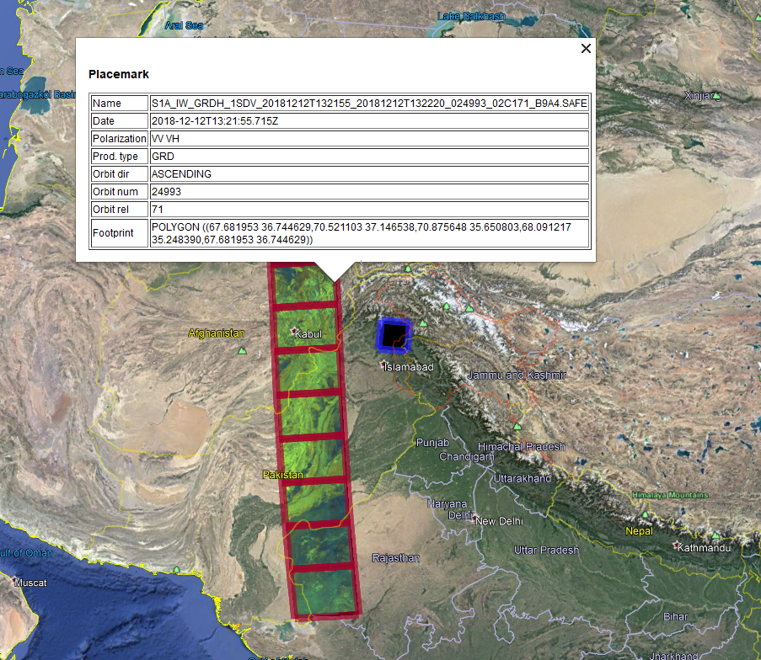
Small previews will be downloaded in the output folder instead of the full size SAR data. Note: Preview mode is supported for Sentinel-1 SLC, RAW and GRD images. Each preview is composed by a .png file containing the quick view image and a .kml file, which contains the footprint polygon and the quick view .png draped. By clicking on the footprint polygon, the following information are displayed: Satellite ID, Acquisition mode, Polarization, Orbit Direction, Absolute Orbit, Relative Orbit and filename. This is helpful in case only one track has to be downloaded but the relative orbit is not known a priori. Defining a region of interest and entering in the Preview Mode allows the user to have an overview of all the acquisitions on the interested area. Afterwards, based on these new acquired information, the search parameters can be adapted in order to match the desired request and the preview mode can be disabled (Preview Only = FALSE) in order to download the SAR data.
In the example below, the preview .kml, displayed in Google Earth, of two tracks on the same area of interest is shown. Clicking of the preview footprint polygon a balloon displaying acquisition information is shown.
The following color code is used for the footprint polygons:
Yellow SLC
Red RAW
Carmine GRD
Blue S2MSI1C
White other
Input Files
Optional Input Files
Input file(s) name of the image to be used as geographic reference for the search query. These files are mandatory if no shapefile or coordinate box is given as a reference. These files can be geocoded files, slant range or ground range files. However, the data type of the whole list has to be the same.
Optional Files
Geographical region
A vector file (.shp), or a Google Earth file (.kml or .kmz) can be upload to specify a region of interest. All acquisitions inside or intersecting this polygon are returned. The shapefile must be in GEO-GLOBAL cartographic system.
Parameters - Principal Parameters
Geographic Region
Box coordinates. All acquisitions inside or intersecting this box are returned. These fields have to be left empty if a shapefile is used as spatial reference. Co-ordinate decimal values must be entered using the dot (e.g. 29.30) and not the comma (e.g. 29,30) character.
West
The Westernmost cartographic co-ordinate (in decimal degrees).
North
The Northernmost cartographic co-ordinate (in decimal degrees).
East
The Easternmost cartographic co-ordinate (in decimal degrees).
South
The Southernmost cartographic co-ordinate (in decimal degrees).
From
Sensing period start date (day-MONTH-year), dd-MMM-yyyy, (01-JAN-1970).
To
Sensing period stop date (day-MONTH-year), dd-MMM-yyyy, (01-JAN-1970).
Preview Only
With this flag on, the Sentinel-1 Downloader is entering in Preview Mode. More information in the technical notes.
Note: Preview will be downloaded only for SLC and GRD data (Sentinel-1).
Unzip Files
With this flag on, the downloaded files will be unzipped. to the directory selected in the Output Files.
Orbit Direction
Filter for orbit direction (Ascending, Descending, ALL). This parameter is optional.
Product Type
Filter for product type (GRD, SLC, RAW, ALL). This parameter is optional.
Acquisition Mode
Filter for acquisition mode (IW, SM, EW, ALL). This parameter is optional.
Relative Orbit
Filter for relative orbit (e.g. 1, 2, 3... ). This parameter is optional.
Polarization Mode
Filter for polarization mode (VV VH, VV, HH HV, HH, ALL). This parameter is optional.
Wait For Completion
It allows to close the panel ones the process is completed.
Login - USERNAME
Username of Sentinel Scientific Hub login credentials. This field is mandatory.
Login - PASSWORD
Password of Sentinel Scientific Hub login credentials. This field is mandatory.
Proxy - URL
If a proxy server is being used for accessing the external network, write here the server address.This field is optional.
Proxy - USERNAME
If the proxy server requires a username put it here.This field is optional.
Proxy - PASSWORD
If the proxy server requires a password, put it here.This field is optional.
Fiirst name
Write here your personal given name.
Last name
Write here your family name.
Write here your e-mail address.
Parameters - Global
It brings to the general section of the Preferences parameters. Any modified value will be used and stored for further processing sessions.
Parameters - ESA SciHub Service
Base URL
It allows setting the ESA Scientific Hub web API entry point (https://scihub.copernicus.eu/dhus/) to perform queries.
Search URL
Subdirectory appended to the base_url address for performing search operations.
Data URL
Subdirectory appended to the base_url address for performing data downloading operations.
Connection timeout
The number of seconds SciHubGet will wait before considering a pending connection failed.
Download timeout
The number of seconds SciHubGet will wait to download at least the number of bytes specified in the download_speed field before considering a pending download failed.
Download Speed
A threshold value, in byte, of data that must be downloaded within the specified download time out, otherwise the connection is considered lost and an error is triggered.
Download Directory
The output directory where content is downloaded.
Parameters - ESA SciHub Account
Login - USERNAME
Username of Sentinel Scientific Hub login credentials. This field is mandatory.
Login - PASSWORD
Password of Sentinel Scientific Hub login credentials. This field is mandatory. Please be aware that this password is stored in clear in the configuration file!
Proxy - URL
If needed, this is the URL of the proxy that SciHubGet must use to access the web. Leave it empty if not used.
Proxy - USERNAME
If the proxy requires a username put it here. Leave it empty, otherwise.
Proxy - PASSWORD
If the proxy requires a password, put it here.Leave it, empty otherwise.
Fiirst name
Write here your personal given name.
Last name
Write here your family name.
Write here your e-mail address.
Parameters - Other Parameters
It brings to the general section of the Preferences parameters. Any modified value will be used and stored for further processing sessions.
Progress File Name
Name of the progress file. All the files found will be downloaded in this directory. More information in the technical notes.
In case the Preview Mode is active, no SAR data is downloaded. Instead, following files will be created for each acquisition:
*.png
Quicklook image file of the acquisition.
*.kml
Kml file, which can be opened in Google Earth, ArcGIS Earth (or similar). This file contains a footprint polygon and will drape the *.png image
*.safe
This file which contains the general product information of the acquisition in XML format. The original file is called manifest.safe. It will be automatically renamed during download in order to have several different manifest.safe in the same folder. More information here https://sentinel.esa.int/web/sentinel/user-guides/sentinel-1-sar/data-formats/safe-specification
*.dat (with .hdr)
Image quicklook file and corresponding hdr file readable in any GIS software.
Unzip files to this directory
All the downloaded files are unzipped in this directory.
General Functions
Exec
The processing step is executed.
Store Batch
The processing step is stored in the batch list. The Batch Browser button allows to load the batch processing list.
Close
The window will be closed.
Help
Specific help document section.
Specific Function(s)
None.
References
None.