|
<< Click to Display Table of Contents >> Import Data - SAR Spaceborne - ALOS PALSAR - 2 |
  
|
|
<< Click to Display Table of Contents >> Import Data - SAR Spaceborne - ALOS PALSAR - 2 |
|
Purpose
Standard products are imported into the SARscape Data Format for further processing.
Technical Note
In case the input is a list of files, all products must be of the same type (refer to the "Supported Products" section) and all mandatory inputs (e.g. Trailer files, Leader files, etc.) must be provided in the same order from the first to the last imported product.
It is worthwhile to note that, once the data in ERSDAC format (zero doppler) and in JAXA format (not zero doppler) have been imported, it is possible to combine them both in the amplitude/intensity processing (e.g. coregistration, time series filtering, etc.) and in the interferometric processing.
Supported Products
The product type can be detected using the following code in the product name: "ALOS_PALSAR2_DDDEFFFGHI"
Supported products:
Observation modes (DDD)
Spotlight
| SBS | Spotlight Mode |
Stripmap
| UBS | Ultra-fine mode Single polarization |
| UBD | Ultra-fine mode Dual polarization |
| HBS | High-sensitive mode Single polarization |
| HBD | High-sensitive mode Dual polarization |
| HBQ | High-sensitive mode Full (Quad.) polarization |
| FBS | Fine mode Single polarization |
| FBD | Fine mode Dual polarization |
| FBQ | Fine mode Full (Quad.) polarization |
Scan SAR
| WBS | Scan SAR nominal [14 MHz] mode Single polarization |
| WBD | Scan SAR nominal [14 MHz] mode Dual polarization |
| WWS | Scan SAR nominal [28 MHz] mode Single polarization |
| WWD | Scan SAR nominal [28 MHz] mode Dual polarization |
| VBS | Scan SAR wide mode Single polarization |
| VBD | Scan SAR wide mode Dual polarization |
Please Note
1- For ALOS-2 Palsar ScanSAR Level 1.1, SARscape only supports Full Aperture processing method. SPECAN processing method (burst mode) is not supported.
2- The use of ALOS Palsar-2 Level 1.5 is not suggested since they can just be imported. Neither the geocoding with the DEM is not possible due to the missing information to reproject them in SAR geometry. For this reason, the Level 1.1 data are suggested for proper SAR processing.
Observation Direction (E)
| L | Left looking |
| R | Right looking |
Processing Level (FFF)
| 1.1 | Level 1.1 |
| 1.5 | Level 1.5 |
| 2.1 | Level 2.1 |
| 3.1 | Level 3.1 |
Processing Option (G)
| G | Geocoded |
| R | Georeference |
| _ | Not Specified |
Map Projection (H)
| U | UTM |
Orbit Direction (I)
| A | Ascending |
| D | Descending |
Further information at http://www.eorc.jaxa.jp/ALOS-2/en/about/palsar2.htm
Only CEOS format is supported. Tiff format is not supported.
To perform interferometry with Palsar-2 ScanSAR data please use the ScanSAR Module.
PLEASE NOTE:
In case of ScanSAR SLC import, the Bursts are kept separately inside a new folder (two folder in case of two polarization) with extension ".split_burst_cut" created in the output directory. A _slc_list file is created as well. Please use this file as input for other processing such as interferometry or multilooking.
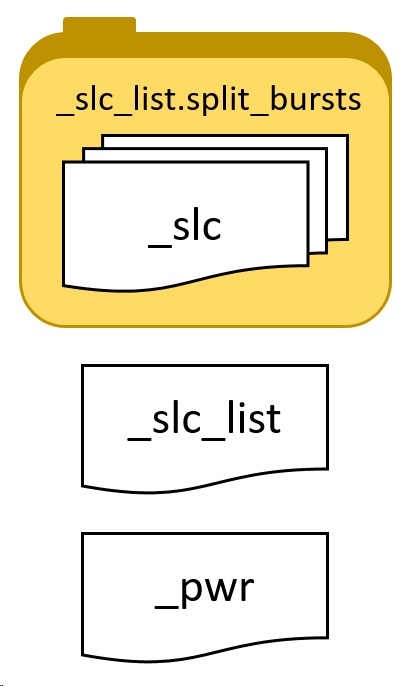
The image below shows a typical folder containing an imported ScanSAR SLC acquisition. The actual SLC data is stored divided in bursts inside the .split_bursts directory. For processing, we suggest to use the _slc_list file which is a link to all the single bursts, SARscape is able to read the _slc_list and perform the link to the bursts. It is not possible to open the _slc_list file in ENVI to show the SLC data as this file does not contains data but only a textfile link. Howeverer, it is possible to open the multilooked _pwr data which is created if the "Make Power QL" is set to true in the "other parameters". It is possible to view the file by multilooking it.
To keep the link between the _slc_list file and the bursts, it is mandatory to keep the file structure as it is. _slc_list file (with .sml) and the .split_bursts folder should be moved or copied together. The _slc_list file (with .sml) and the .split_bursts folder must be in the same directory.
In case of Sample Selection is performed after the import, the structure of the output file will remain the same (filename will have the suffix _cut added). To perform sample selection of _slc_list data, please follow the instructions found here.
|
_slc_list.split_bursts This folder, called with the extension "_slc_list.split_bursts", contains all the single bursts which contains the entire acquisition. Each burst has a _slc extension, ENVI header files (.hdr) and SARscape header files (.sml), as well as shapefile (.shp) which allow the user to display the boundaries in geographic coordinates, for instance in ENVI. .kml are also provided for location display purpose. These files can be opened in Google Earth, ArcGIS Earth or similar software.
Please note: No not use these _slc for processing but use rather the _slc_list file which is located outside this folder.
|
_slc_list The _slc_list file is a simple text file which "links" to the different _slc files composing the acquisition which are located inside the "_slc_list.split_bursts" folder. This file is accompanied by a SARscape header file (.sml) which allows the software to recognize the _slc_list as a valid file for processing input. This file can not be opened in ENVI.
|
|
pwr This file is the result of the mosaic of multilooked bursts. This file can be opened in ENVI and represents the intensity.
|
Important: For ScanSAR interferometry, the PALSAR-2 SCANSAR preferences should be loaded from SARscape Preferences. For SM products the VHR preferences should be selected.
Input Files
Input File list
Input file name(s) of the original data. These files are mandatory.
Note: In case of ScanSAR SLC only one file (swath) has to be entered as input instead of all images. Only the polarizations present in the data list will be imported.
Parameters - Principal Parameters
Apply Calibration Constant
The calibration constant is applied (if available). Note: this has no effect of phase values.
Rename The File Using Parameters
If set to true, only relevant information will be copied from the input name(s) to the output name(s), the full root name otherwise.
User Calibration Factor (db)
If a value different than 0 (zero) is set, it will be used in the calibration in place of the Calibration factor (CF1) included in the Leader file. See the official documentation at this link for further information.
Fill dummy during import
Possibility to replace invalid backscatter pixel values with random low values.
Note: the Data Type is automatically detected and selected.
Parameters - Global
It brings to the general section of the Preferences specific parameters. Any modified value will be used and stored for further processing sessions.
Parameters - Other Parameters
It brings to the general section of the Preferences parameters. Any modified value will be used and stored for further processing sessions.
Output Files
Output file list
Output file name(s) of the imported data. These files are mandatory.
Root name or assembled name of the imported file(s) and associated header files (.sml, .hdr). Specific file suffixes are added according to the data type.
.shp
Shape file and associated header files (.sml, .hdr) containing the image perimeter in geographic co-ordinates.
.kml
ASCII file containing the image perimeter in geographic co-ordinates. Double clicking on this file will automatically position the boundaries of the scene into the Google Earth environment.
Details specific to the Units of Measure and Nomenclature of the output products can be found in the Data Format section.
General Functions
Exec
The processing step is executed.
Store Batch
The processing step is stored in the batch list. The Batch Browser button allows to load the batch processing list.
Close
The window will be closed.
Help
Specific help document section.
Specific Function(s)
None.
Task, SARscapeBatch object, SARscapeBatch script example
References None.