|
<< Click to Display Table of Contents >> PS Compute Specific Sub-Area |
  
|
|
<< Click to Display Table of Contents >> PS Compute Specific Sub-Area |
|
Purpose
During the first PS inversion, in some circumstances, some Sub-Areas can show wrong velocity and height values if these are computed using a wrong reference point (automatically chosen),
This tool allows to re-compute the velocity and height values for these sub areas where the results are not satisfactory (e.g.: discontinuities in velocity or height values or very low coherence over urban areas) by letting the user the possibility to manually chose the reference point.
Specific behaviors when a Reference Point is selected:
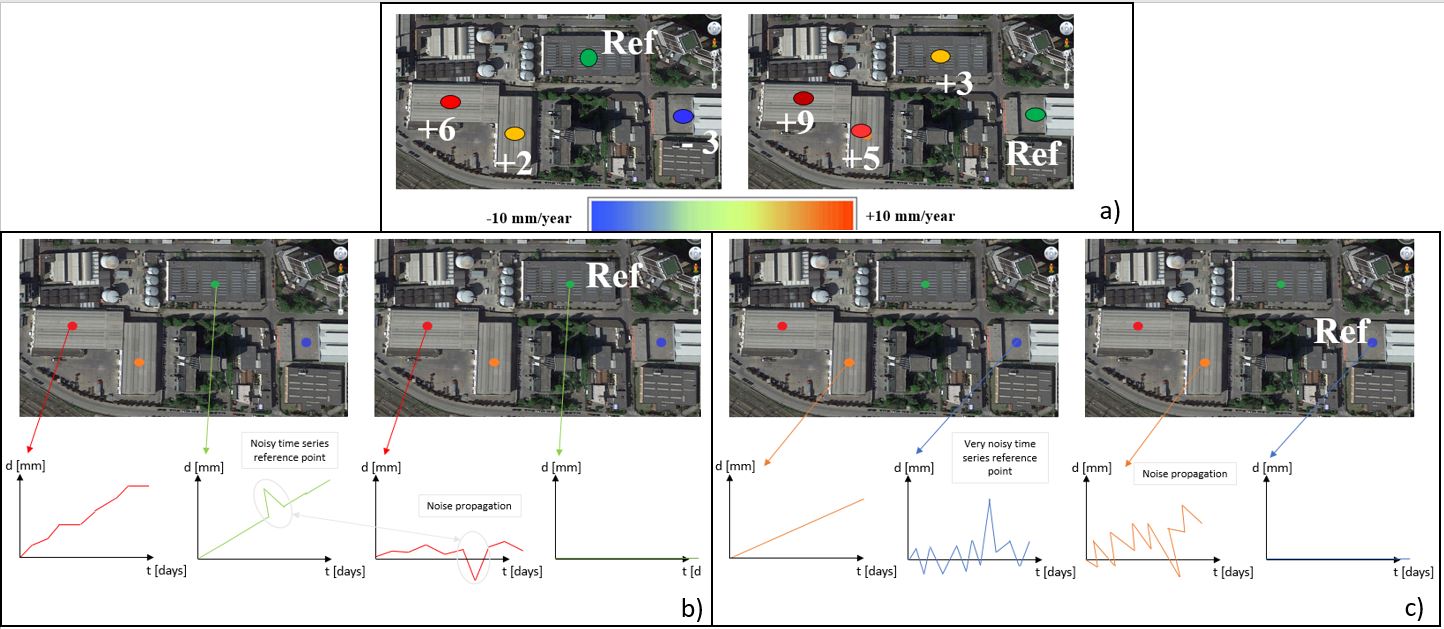
The selection of a Reference point influence the behavior of the output result.
With reference to the figure above where:
Figure a) shows the point differential average velocities when two different reference points are selected.
b) Original relative result time series (left) and absolute time series (right) once the reference point selection allows the re-flattening process. The noisy pick on the reference point time series (in green) shows the noise propagation in the velocity computation of the red point, once the re-flattening is performed.
c) Original relative result time series (left) and absolute time series (right) the reference point selection allows the re-flattening process. The noise which characterizes the blue point used as reference point in this figure shows random picks on the reference point time series. The noise propagation in the velocity computation of the orange point, once the re-flattening is performed, shows the corresponding propagated random behavior on the orange time series.
Technical Note
This tool should be used after the PS Inversion: First Step if the value of velocity and height of one or more Sub-Areas are not satisfactory.
These values can be checked by opening the files "cc_first", "Height_first" and "Velocity_first". The reference points used are stored in the "Ref_GCP.shp" file and the Sub-Areas in the "SubAreas.shp" file. All these files are located in the "first_inversion" directory, inside the PS_processing folder.
To find out the ID number of a given Sub-Area, please move the "SubAreas.shp" file at the top of the Layer Manager in ENVI, right click on the "SubAreas.shp" in the Layer Manager and then "View/Edit Attributes". Now, when a Sub-Area is clicked, the Attibute Viewer will highlight the ID Polygon. Please note the ID of the Sub-Areas you want to modify.
After inserting the ID of the subarea in the panel, if a better location for a new reference point can visually already be detected, the coordinates of the new reference point can be insert (slant range coordinates). The "Generate Only Candidates" should remain set to FALSE.
Note: The point can be also located outside of the SubArea. This is, for example, useful if the SubArea is fully affected by movement and the point is chosen on a stable point.
Otherwise, it is possible to set the "Generate Only Candidates" flag to TRUE. In this case, a list showing a sample of 10 points candidates is shown. This list contains, for each point, the number, azimuth and range coordinates, Mean/Std (Mu Sigma) and Average Multitemporal Coherence. The meaning of this last value is the average between the other 9 points of the multitemporal coherence if this point candidate is chosen and gives a fast approximation of the expected result.
Once the better of the 10 points is identified, you can insert the coordinates in the panel. The best points should have a high Mu Sigma (which is not normalized) and an high Average Multitemporal Coherence (between 0 and 1).
The generation of candidates saves the report in a folder called "work_sub_areas" together with two shapefiles showing the 10 points: one is in geographic coordinates and the other in slant coordinates
To start the processing the "Generate Only Candidates" flag has to be set to FALSE.
The principal PS parameters could be changed too in order to improve the results. However, The first inversion has to be re-performed using these new parameters
Note: The old Sub-Area will be overwritten by the recomputed one. The 1st inversion has to be re-performed again setting "SubArea Merging Only" to TRUE.
Input Files
Auxiliary file
Reference file generated as output of the "Connection Graph" step. This file is mandatory.
Parameters - Principal Parameters
Displacement Sampling (mm/year)
This corresponds to the sampling frequency (in mm/sec) which is used to estimate the displacement velocity.
Min Displacement Velocity (mm/year)
This corresponds to the value expected (in mm/year) as the minimum displacement velocity.
Max Displacement Velocity (mm/year)
This corresponds to the value expected (in mm/year) as the maximum displacement velocity.
Residual Height Sampling (m)
This corresponds to the sampling frequency (in meters) which is used to estimate the residual height.
Min Residual Height (m)
These correspond to the minimum (negative value) residual height, with respect to the reference Digital Elevation Model.
Max Residual Height (m)
These correspond to the maximum (positive value) residual height, with respect to the reference Digital Elevation Model.
SubArea For Single Reference Point (sqkm)
It refers to the maximum size for one 'Reference Point'.
Rebuild All
By setting this flag the second step of the PS Inversion process is started from scratch.
SubArea Overlap (%)
It refers to the overlap between the sub areas.
ID Sub-Area
ID number of the Sub-Area that needs to be re-computed.
To find out the ID number of a given Sub-Area, please move the "SubAreas.shp" file at the top of the Layer Manager in ENVI, right click on the "SubAreas.shp" in the Layer Manager and then "View/Edit Attributes". Now, when a Sub-Area is clicked, the Attibute Viewer will highlight the ID Polygon. Please note the ID of the Sub-Areas you want to modify.
Ref Point Rg Value
Coordinate value along range direction of the new reference point..
Ref Point Az Value
Coordinate value along azimuth direction of the new reference point.
Generate Only Candidates
If this flag is set to true, clicking on Exec. will create a document showing 10 candidate reference points (please refer the technical notes). To perform the processing please set this flag to false. Note: It is not possible to set this flag to true and perform Batch processing.
Number of Candidates
It refers to one or more pixels for each subarea considered as candidates (Reference Points), based on the Amplitude Dispersion Index (for the calculation of the phase offset to remove), are automatically analyzed and just one will be selected as reference point.
Parameters - Global
It brings to the general section of the Preferences parameters. Any modified value will be used and stored for further processing sessions.
Parameters - Other Parameters
It brings to the general section of the Preferences parameters. Any modified value will be used and stored for further processing sessions.
Water Mask (db)
Value in dB used as threshold to retrieve a water body mask from the average intensity image. All the points under this threshold will be removed from the output layers. Active if smaller than 0.
MuSigma Mask
Pixels characterized by values lower than the specified MuSigma mask are not considered during the processing. In case this parameter is set, the speed up increases but the at the cost of loosing potential PSs. (the more speed up the less PSs).
Output Files
If the "Generate Only Candidates" flag is set to true, two shapefiles and a report txt file are created in the work_sub_areas folder.
The re-computed sub area values of velocity, height and coherence will overwrite the old ones in the "work_first_inversion" directory. The 1st inversion has to be re-performed again setting "rebuild merging" to TRUE.
General Functions
Exec
The processing step is executed.
Store Batch
The processing step is stored in the batch list. The Batch Browser button allows to load the batch processing list.
This functionality can be used only if performed on different sub-areas and if the coordinates of reference points are already known. Generate Candidate Only flag will not work.
Close
The window will be closed.
Help
Specific help document section.
Specific Function(s)
None.
Task, SARscapeBatch object, SARscapeBatch script example
References None.