|
<< Click to Display Table of Contents >> Interferometry - Interferometric Tools - Phase Editing |
  
|
|
<< Click to Display Table of Contents >> Interferometry - Interferometric Tools - Phase Editing |
|
Purpose
This functionality enables to correct errors (2π cycle multiples) in the unwrapped phase or a given value in the wrapped phase. Typical errors, which can be edited, are those due to phase jumps causing discontinuities in the unwrapped phase. The process can be executed in a either fully-manual or semi-automatic way.
It is worthwhile to mention that this functionality, even if specifically conceived for the phase editing, could be optionally used to edit any other SARscape product.
Technical Note
The editing is executed by following four sequential steps:
1.Start the process to create a copy of the unwrapped phase.
2.When the process ends, the copied image and the following pop up are shown:
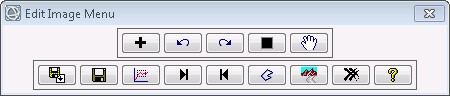
3.Create a ROI using the Region of Interest tool found under File > New. The ROI can be imported from a previous process using the Import ROI button.
Note: The region can be made of one or more polygons. Keep in mind that all polygons have to belong to the same ROI and not two different ROIs.
4.Perform the operation needed to correct the phase value. Choose between Increment, Mask and Set. Once the processing is ended, the modified image is loaded in the Manager and is opened.
5.In case of error(s), the process can be reverted using the UNDO button (max 10 steps). If the performed UNDO was not necessary, it is possible to revert to the correct version using the REDO button.
6.When all the needed edits are done, the tool can be closed using the close button. All the intermediary steps are deleted.
It order to update the visualization of the edited file, just move the "Display Scroll Bars" in the ENVI "Image Window".
Input Files
Unwrapped Phase file
File name of the input unwrapped phase (_upha). This file is mandatory.
Parameters - Principal Parameters
Overwrite
By setting this flag, the Edited Unwrapped Phase file is overwritten (if already existing).
Parameters - Global
It brings to the general section of the Preferences parameters. Any modified value will be used and stored for further processing sessions.
Parameters - Other Parameters
It brings to the general section of the Preferences parameters. Any modified value will be used and stored for further processing sessions.
Output Files
Edited Unwrapped Phase file
File name of the output (edited) unwrapped phase. This file is mandatory.
Specific Function(s)
 Increment
Enter the "Increment value" (negative values correspond to decrements), to correct the area inside the selected ROI. The phase values can be modified only by 2π multiples. Old ROIs (i.e. already edited), must be previously removed.
Specify the "Limit value" above (if incrementing) or below (if decrementing) which the pixels inside the ROI have not to be modified. These are pixel values.
It is possible perform the action outside the ROI by selecting "Extern ROI". Values inside the ROI are not modified in this case.
If the "increment" action is performed on a "complex" data, the "complex" flag has to be selected and the increment has to be given in radians and not in 2π multiples Note: this action can be performed only inside the ROI.
 Undo
Undo
Undo the last edit.
 Redo
Redo
Redo the last undone edit.
In case of "Subtract Component" is undone, it is not possible to perform the "redo" operation.
 Mask
Mask
The area inside the selected ROI(s) is set to dummy (Not a Number, NaN). Example: lake.
It is possible to mask the region outside the ROI by selecting "Extern ROI". Example: island. In case of complex data, the "complex" flag has to be selected and the masked region is set to 0 for both complex components.
 Set
Set
The area inside the selected ROI(s) is set to a unique value, which must be specified.
It is possible to set to a unique value the region outside the ROI by selecting "Extern ROI".
In case of complex data, the "complex" flag has to be selected and the phase in the selected region is set to the specified value. Note: this action can be performed only inside the ROI
 Subtract Component
This tool allows to subtract a value on the whole image according to a polynom calculated on the selected region (ROI).
Degree: Degrees of the polynom (1 to 6)
Geocoded: Select this flag if the processed data is geocoded
Complex: Select this flag if the processed data is a complex data. In this case, only the Phase value is decremented.
Note: not all Degrees are possible according to the file is being processed
 Commit
Once a step where all the edits performed are considered correct, it is possible to save the curent stage that can be restored if the next edits are not satisfactory. Temporary "undo and redo" files are removed. This button creates a "_back file", which is a copy of the actual processed image, that can be used by the Restore function later.
 Restore
A previously saved backup file "_back" is loaded. All the performed UNDO and REDO steps are deleted.
 Save ROI
The actual ROI is saved, the suffix "_roi" is added at the end of the file name.
 Import ROI
A previously saved roi will be imported.
 Reload ROI
Reload last used roi of actual session. The ROI has to be used at least one time in order to be reloaded.
 Reload Image
In case the image is closed, for any reason whatsoever, the current working version of the image is reloaded.
 Close
Close
The window will be closed. All the intermediary steps are deleted.
 Help
Help
Specific help document section.
General Functions
Exec
The Phase Edit tool is started and opened in a new window.
Close
The window will be closed.
Help
Specific help document section.
References
None.